Personal Safety App Android: Features to Compare
Compare personal safety app android features, permissions, privacy, and platform support to choose tools for check-ins, alerts, coordination, and preparedness.
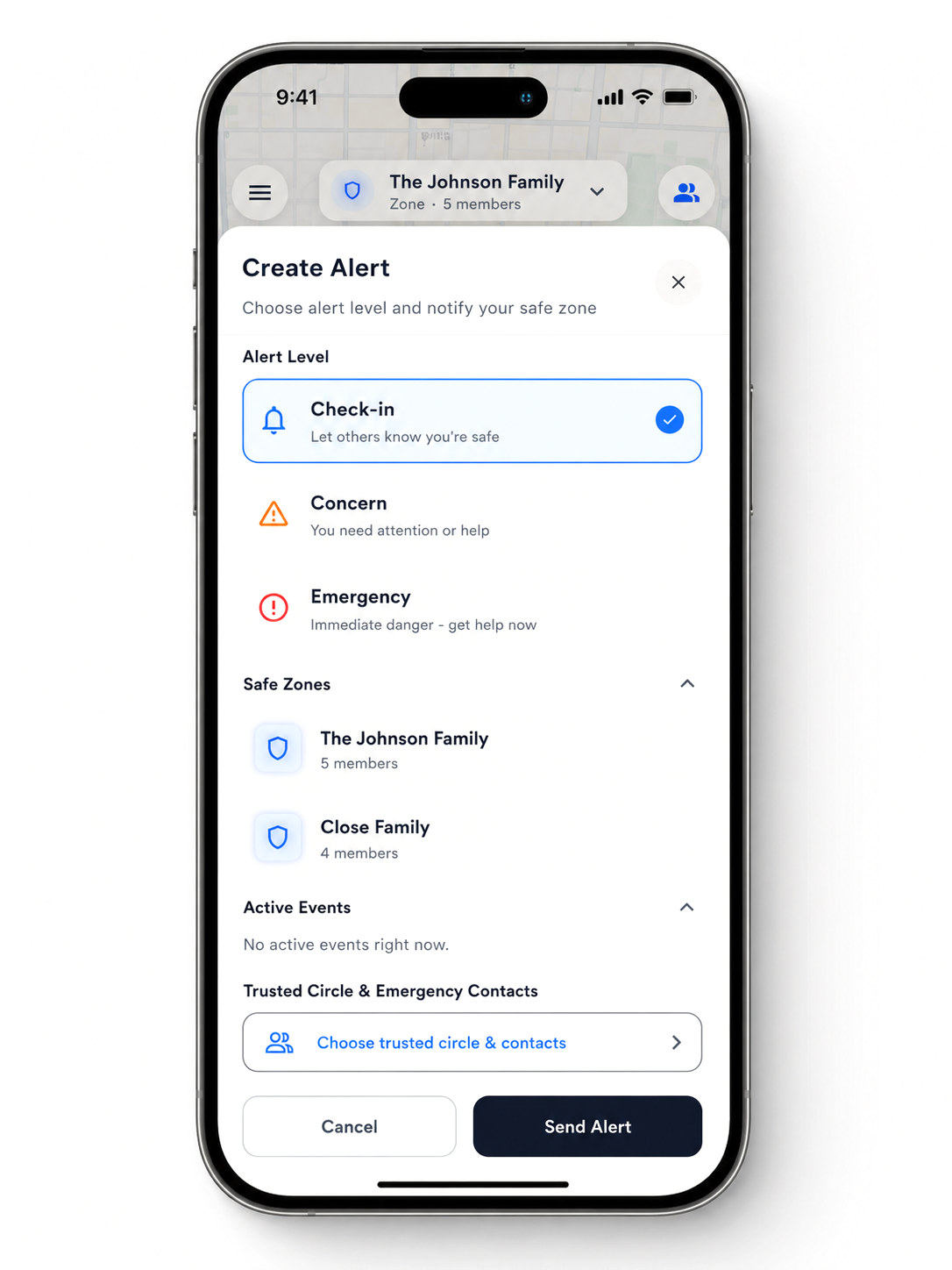
Personal safety tools on Android are not all designed for the same moment. Some help you contact emergency services, some support a timed check-in or trusted contact, and others keep families coordinated through ordinary routines. The useful comparison is not which app has the longest feature list, but whether its purpose, permissions, privacy approach, and device support match the people who will rely on it.
A personal safety app for Android users should make its role clear, support practical features such as check-ins, alerts, safe zones, messaging, or calling, and explain how permissions and personal information are handled. For mixed-device groups, Android, iOS, and web access can also matter as much as any individual feature.
Start by separating the safety functions already available on a phone from specialized apps and broader coordination platforms. That distinction makes it easier to evaluate what each category actually does, where it fits into daily life, and how the underlying Android tools shape the experience.
Become a Founding Member and see what's included
Emergency note: SafeZone365 is not a replacement for emergency services. In a life-threatening emergency, always call your local emergency number, 911 in the US, first before relying on the app.
What Is a Personal Safety App on Android?
A personal safety app on Android is a tool that helps someone prepare for an emergency, request help, share relevant information, or stay connected with trusted people. The category includes safety features built into an Android phone and separate apps downloaded from Google Play. The right choice depends on whether you need immediate emergency access, routine check-ins, family coordination, preparedness information, or a combination of those functions.
Built-in Android safety tools
Built-in tools are part of the phone's operating system. Depending on the device and region, they may support functions such as Emergency SOS, emergency contacts, safety checks, alerts, or Medical ID information that can be viewed from the lock screen. These tools are useful because they are close at hand and may work without requiring you to find and open a separate app.
They are generally focused on an urgent moment or a specific device-level need. For example, an emergency feature may help you contact assistance or share information, while a Medical ID can give responders important health details. Availability and exact behavior can vary by Android version, manufacturer, settings, and location, so review the options on your own phone rather than assuming every Android device works the same way.
Downloaded apps add routines and coordination
A downloaded app can extend beyond one phone's emergency settings. Some connect users with a campus or organizational response team. Others support a timed walk, a check-in, a trusted contact, or an emergency notification. Preparedness apps may focus on hazard guidance, family communication plans, emergency kits, weather alerts, or nearby shelters. These are different jobs, even though they all sit within the broader personal safety category.
Family coordination platforms take another approach. They can combine user-triggered alerts with everyday communication and planning, so safety is not limited to a crisis. Features may include permission-based location awareness, arrival or departure notifications, secure messaging, calls, event coordination, and check-ins. When comparing a personal safety app for Android, separate emergency response from ongoing coordination, then check permissions, privacy practices, cross-platform support, and the specific capabilities the app actually documents. Not every safety app offers crash detection, and that feature should never be assumed from the category name alone.
Personal Safety App Android Features Worth Comparing
A useful comparison starts with what happens before, during, and after a safety concern. Look for features that support ordinary coordination as well as moments when a person needs to communicate clearly with trusted contacts.
Check-ins and trusted contacts
Check-ins should be easy to send and meaningful to the people receiving them. Ask whether an app supports a simple status update, a planned event, or a group activity without requiring everyone to manage the same routine. Event Pulse, for example, supports temporary coordination networks, participant invitations, status updates, and check-ins. That can fit a school activity, family outing, or other defined event without turning every plan into a permanent group.
Alerts and safe zones
Compare the kinds of alerts an app supports and who can receive them. A useful system may combine user-triggered alerts with contextual information, rather than treating every notification as an emergency. SafeZone365 safe zones can send arrival and departure notifications for configured places. This can help trusted contacts understand routine transitions, such as arriving at school or leaving an activity, while keeping visibility permission-based.
Messaging, calling, and preparedness
Safety communication should not stop at a location update. Check whether the app provides secure messaging, one-to-one calls, group calls, and media sharing, since different situations call for different forms of contact. SafeZone365 lists encrypted messaging, one-to-one voice calling, group calling, and media sharing as part of its communication capabilities. You can explore SafeZone365 features to review the complete feature set.
Finally, consider preparedness. Some tools focus on alerts or immediate contact, while others help people coordinate plans and maintain readiness in everyday life. Compare the app's purpose, privacy controls, Android experience, and support for the people in your trusted circle. The strongest fit is the one that matches your actual routines without promising capabilities it does not provide.
Which App Category Fits Your Safety Routine?
The best category depends on what you want the app to do when life is normal, when a journey feels uncertain, or when a larger emergency affects your household. These categories can overlap, but they are not interchangeable. A personal safety app for Android should be evaluated by its response model, trusted circle, permissions, and coverage rather than by its label alone.
| Category | Best for | Typical strengths | Important question |
|---|---|---|---|
| Built-in emergency tools | Fast access to device-level emergency features | Emergency calling, device alerts, and safety checks that are integrated into the phone | Which features does your Android model and current software support? |
| Check-in or walk-home apps | A defined trip, walk, commute, or meeting | Timers, journey confirmations, location sharing, and escalation when a check-in is missed | Who receives the alert, and is a response team required? |
| Family coordination platforms | Recurring household communication and shared routines | Trusted contacts, status updates, arrival or departure notifications, messaging, and coordination across devices | Can everyone in the circle use it, and are visibility controls clear? |
| Preparedness apps | Planning before severe weather or another emergency | Hazard guidance, emergency plans, kit information, alerts, and shelter resources | Does it cover the locations and hazards relevant to your household? |
For example, Securitas Personal Safety is designed to connect an alert, journey, meeting timer, or man-down event with a campus or company security team. Its listing also says that the associated security portals and response tools must be in place for that workflow to function, so it illustrates an organization-supported model rather than a universal app pattern: Securitas Personal Safety on Google Play.
Preparedness tools address a different need. The FEMA App provides guidance for family communication plans and emergency kits, alerts for up to five locations, and help finding nearby shelters. Choose this category when planning and public information matter more than ongoing household coordination.
If your routine spans school pickups, family arrivals, planned events, and everyday check-ins, a coordination platform may be the more natural fit. If you mainly need a timed walk or access to a staffed response team, a specialized check-in tool may be enough. Many people use built-in emergency tools alongside one focused app, provided they understand which tool receives each alert and who is expected to respond.
How Android Permissions Affect Personal Safety Apps
Permissions are the settings that determine which parts of an Android phone a safety app can use. The right choice depends on the app's purpose and the feature you want to use. A practical review asks a simple question for each request: what safety function does this enable, and am I comfortable granting that access?
What common permissions can do
- Location: Location access can support a check-in, help identify nearby resources, or share a position when a user requests help. Some apps also use it for configured place alerts. It should be clear whether location is needed only during an active feature or for another stated purpose.
- Contacts: Contacts access can make it easier to select trusted people for an emergency contact list or check-in. It does not automatically mean every contact needs to become part of a safety circle.
- Notifications: Notifications can deliver check-in reminders, status changes, or time-sensitive safety information. Turning them off may make an otherwise useful feature less visible.
- Phone: Phone access may support calling a chosen contact or an emergency resource. A Nevada government guide gives Medical ID as an example: its Android setup requests location and phone access so a person can be found, nearby hospitals can be located, and emergency contacts can be called through the app. Read the Nevada permission examples.
- Connectivity: Wi-Fi and mobile data allow an app to send updates, receive notifications, and connect a check-in or alert to its intended recipients. Review what the app says will happen if connectivity is limited.
- Lock-screen information: Some safety information may be designed to remain visible without unlocking the phone. The Nevada guide notes that an Android Medical ID can be viewed from the lock screen, so review the information you choose to display.
Permission-based design should also include understandable controls. SafeZone365 describes location visibility as permission-based, supporting coordination without treating personal location as universally visible. You can review SafeZone365's privacy and security approach before deciding whether its model fits your trusted circle.
Revisit permissions after installing an app, changing phones, or changing the people included in your safety routine. The goal is not to approve every request or reject every request. It is to match each permission to a useful, understood feature.
Does Cross-Platform Support Matter for Trusted Circles?
Yes. A trusted circle is only as practical as the access each person can use. Families often mix Android phones, iPhones, tablets, and laptops. A caregiver may prefer a web browser, while a student relies on a phone. If a safety tool works on only one operating system, someone may be left out of an important check-in, alert, or coordination plan.
Cross-platform coverage also reduces friction during ordinary routines. Parents can coordinate school pickup with one device type, grandparents can participate from another, and students can stay connected without asking everyone to replace a phone. Web access can be useful when someone is using a shared computer or does not want every coordination task tied to a mobile screen.
Campus programs show why device coverage matters. The University of Notre Dame describes ND Safe as available on both Apple and Android devices, with one-button access to university dispatch, county 911, and non-emergency assistance. That example is campus-specific, but the underlying lesson applies more broadly: a safety service should meet people on the devices they already use, while clearly explaining which features depend on the organization or app.
For families and caregivers, look beyond the app-store listing. Confirm whether the service supports Android, iOS, and web access, and check whether the same core functions are available across platforms. Ask whether alerts, messaging, check-ins, and shared coordination work consistently for every member of the circle.
SafeZone365 supports Android, iOS, and web, giving mixed-device groups a common platform for permission-based coordination. Its feature set includes everyday communication and safety tools rather than requiring everyone to use the same phone ecosystem. See how families coordinate across routines, devices, and trusted relationships.
How SafeZone365 Brings Everyday Coordination Together
SafeZone365 is designed to connect the practical parts of personal safety without turning everyday life into a monitoring exercise. Its five pillars, Safety, Communication, Coordination, Connection, and Preparedness, work together across routine plans and moments that need a faster response. You can learn about the personal safety platform and how those pillars fit together.
For families, students, caregivers, and organizations, that means keeping useful context in one place. SafeZone365 combines user-triggered alerts and contextual information with everyday coordination features. The goal is to support the space between "everything's fine" and "call 911," whether people are managing a school event, a caregiver handoff, a group outing, or a changing schedule.
Coordinate places, plans, and check-ins
Safe zones can send arrival and departure notifications for configured places. That can help a household coordinate routine transitions without requiring someone to repeatedly ask for an update. For a temporary activity, Event Pulse can create a coordination network with participant invitations, status updates, and check-ins. The same structure can support a family gathering, a youth activity, or an organization event where people need a shared view of participation.
Real-time alerts are user-triggered and can include contextual information. Location visibility is permission-based, and the platform is built around intentional coordination rather than passive background observation. The people included in a safety circle should have visibility because the user has chosen to share it, not because an app silently treats access as the default. Explore SafeZone365 features for the current capability set.
Keep communication private and available
Coordination is harder when the plan, the check-in, and the conversation live in separate places. SafeZone365 lists encrypted messaging, one-to-one voice calling, group calling, and media sharing, giving people several ways to communicate around the same event or safety need. The platform emphasizes end-to-end encryption, no ads, no data mining, and no third-party trackers. Review SafeZone365's privacy and security approach to understand its privacy and security positioning.
SafeZone365 does not currently offer crash detection. That limitation matters when comparing a personal safety app for Android. Choose a tool based on the capabilities you actually need, and keep any separate device or emergency features that serve a different purpose.
A Simple Checklist for Choosing an Android Safety App
- Define the purpose first. Decide whether you need emergency access, routine check-ins, family coordination, campus support, preparedness guidance, or a combination. A focused purpose makes it easier to compare useful capabilities rather than collecting features you will not use.
- Identify the trusted contacts. List the people who should receive a check-in, alert, call, or status update. Confirm that the app supports the relationship and response pattern you actually need. Some services connect users to an organization or security team, while others are designed for family and personal circles.
- Match features to the routine. Look for the specific actions you expect to use, such as check-ins, safe arrival notifications, messaging, calling, or temporary event coordination. Do not assume that every app includes every safety function, or that an emergency feature in one app works the same way in another.
- Review permissions by purpose. Read why the app requests location, contacts, phone, notification, or lock-screen access. For example, a government Android Medical ID guide explains that location and phone permissions can support finding a user, locating nearby hospitals, and calling emergency contacts. Grant only permissions that fit the function and your comfort level.
- Check device and group compatibility. Verify Android version requirements and whether the people in your trusted circle use Android, iOS, or the web. A cross-platform option may be more practical than asking everyone to change devices.
- Read the privacy terms. Check what information is collected, when location visibility is active, who can see it, and how data is protected. Prefer clear, permission-based controls over vague promises.
- Set connectivity expectations. Confirm which functions need location services, notifications, Wi-Fi, or mobile data. The University of Kentucky recommends enabling those services for full use of its SafeZone app, a useful reminder to test the app under the conditions where you expect to rely on it.
- Add preparedness support where useful. Consider whether the app offers plans, alerts, emergency-kit guidance, or shelter information. FEMA's app, for example, provides preparedness guidance, family communication plans, kit advice, alerts for up to five locations, and shelter-finding support.
- Run a test plan before relying on it. Have each contact accept an invitation, complete a check-in, receive a notification, and understand what happens next. Test permissions, connectivity, battery impact, and account recovery. Revisit the setup after a device change or whenever your trusted circle changes.
See what's included and reserve your Founding Member spot
Frequently Asked Questions
What is personal safety on an Android phone?
Personal safety on Android includes tools that help you share important information, check in with trusted people, receive alerts, communicate, and prepare for emergencies. The right setup may combine built-in phone features with a downloaded app, depending on whether your priority is emergency response, everyday coordination, campus support, or preparedness.
Do I need a personal safety app on my Android phone?
Not everyone needs the same tool. Consider one if your routine includes regular check-ins, family or caregiver coordination, safe-zone notifications, group events, or a need to connect Android users with people on other devices. Review the app's actual capabilities and choose features that match your routine rather than collecting overlapping tools.
Is a personal safety app safe?
Safety depends on the app's permissions, privacy practices, security design, and your settings. Before installing, check why it requests location, contacts, phone, or notification access, and whether you can control visibility. SafeZone365 describes permission-based location visibility, end-to-end encryption, no ads, no data mining, and no third-party trackers in its security approach: review SafeZone365's privacy and security approach.
Can I disable a personal safety app?
Usually, you can remove an app or change its permissions through Android settings, although the exact steps vary by phone and app. Before disabling it, consider which check-ins, alerts, safe-zone notifications, or trusted-contact features will stop working. If you no longer need the app, review its account and data-deletion options as well as uninstalling it.
Ready to Compare Your Safety Options?
Choosing a personal safety app for Android is easier when the platform supports both everyday coordination and preparedness, while respecting the privacy of your trusted circle. SafeZone365 brings those needs together across compatible devices, so you can explore a practical approach before deciding what fits your routine. Become a Founding Member and see what is included when you are ready to get started.